General Tips
- Our biggest tip is to be SPECIFIC. Select Mode helps because providing “context” to the AI is key to getting accurate results.
Remember that the AI cannot read your mind.
- Getting an error? Use the
/Debug skill.
- Attach screenshots when creating designs
- Use ChatGPT to generate a prompt for you. The more specific the better.
- Don’t see any changes? Ask the AI to explain what it did. Switch to
/Ask mode. For example, It might have made a new page but didn’t link a button to it.
Select Mode and Visual Edit
Selecting specific elements with “Select Mode” is the most important feature
for getting accurate results.
- Toggle on Select Mode from the bottom-left corner of the chat
- Click any element in your design (button, text, image, etc.)
- This will open the Visual Edit panel.
- By default, the “context” of what you have selected will be added to the chat.
- Optional: edit visual properties manually in the panel and then click “Save.”
You can quickly toggle Select Mode with ⌥ + S.
When to use Select Mode
- When the AI is changing the wrong thing
- When working with complex, multi-section designs
Adding Context to a Prompt
Attaching Files
You can attach images and .md files to a prompt — both when starting a new design from the dashboard and from the editor chat bar. Drop in a screenshot, PRD, spec, or notes doc and the agent reads it as first-class context.
Attaching a screenshot as a starting point is highly recommended — the models
are great at recreating designs from images.
- Uploaded markdown files are saved alongside your design as
docs/*.md, so they stay attached to the artifact and are available on every follow-up prompt.
Other Magic Patterns Designs
Want to merge designs? You can simply paste Magic Patterns links directly into your prompt. See more in the Merging Designs guide.
Chat Modes, Commands, and Integrations
Type / in the chat input to open the menu. You can also use Chat Modes and Skills straight from the dashboard initial prompt to kick off a new design.
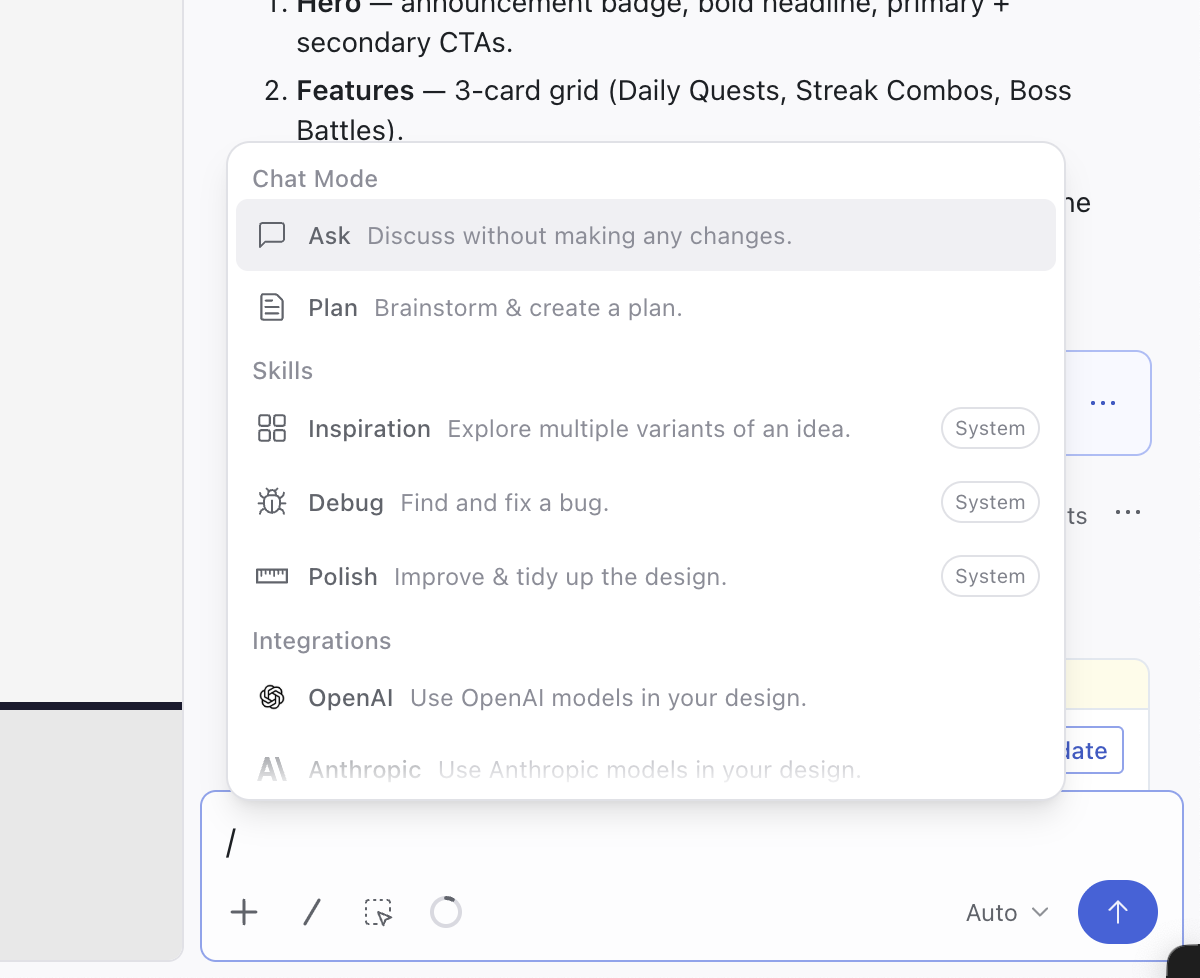
Chat Modes
Chat modes change how the AI responds to your next message and stay active until you switch them.
/Ask
Chat with the AI without generating code (great for planning or asking questions). Uses credits.
/Plan
Plan a change with the AI before it edits your design. The agent asks a few clarifying questions, drafts a structured plan you can edit, and only writes code once you approve it. Useful for larger changes when you want to align on the approach first. Uses credits.
Read the full Plan Mode guide.
Default Skills
Skills are powerful default prompts that help you work more efficiently. You can also add your own custom Skills.
/Debug
If the AI is in a doom loop or not following instructions, the /Debug skill uses a special prompt template to help debug the issue effectively.
/Inspiration
Generates 4 different design variations to explore options.
/Polish
Cleans up your design with better spacing, alignment, and visual hierarchy.
Managing Context
Magic Patterns manages your conversation context automatically, but these commands give you more control. Smaller context keeps the agent focused and lowers per-generation credit costs. See Credits and Billing for how context affects credits.
/Summarize
Condenses the conversation so far, preserving the important details while freeing up context.
/Clear
Resets the current conversation context without needing to fork the design. Useful when you start an unrelated task on the same design.
Integrations
The / menu also gives you access to your Integrations, so you can pull in services like OpenAI, Anthropic, or Feedback collection without leaving the chat.
Using Version History
One of the most powerful features of Magic Patterns is version control. It’s
instantaneous because Magic Patterns is frontend-only.
Reverting to a previous design
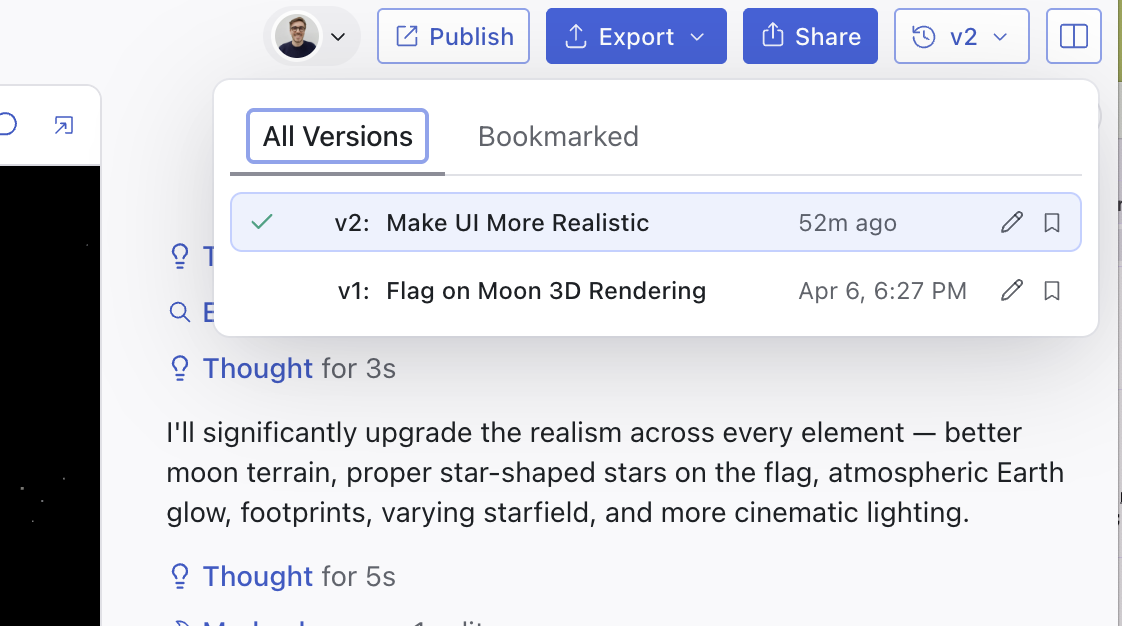
To go back to a previous design, click an older artifact card or select a version from the versions dropdown to preview it. Previewing lets you inspect an older version without changing the active version.
To make the previewed design active again, click Restore this version. Restoring creates a new latest version from the selected design, so future prompts continue from that restored version.
If you send a prompt while previewing an older version, Magic Patterns will ask
you to confirm before restoring it as the active version.
- Thumbs down opens an optional comment box so you can tell us exactly what went wrong.
- Every rating is logged with the full conversation context so we can reproduce and fix the issue.
Prompting Dos and Don’ts
| ❌ Don’t | ✅ Do |
|---|
Don’t be unclear: checklist with 4 sections with 3 tasks each showing progress | Do be specific: four sections with 3 checkboxes each. There should be a progress bar for each section that changes according to the number of checkboxes checked |
Don’t omit component names: a box for checks in a list in screen thing | Do use component names: Three checkboxes in a list in a modal |
| Don’t upload lengthy PRDs expecting perfect results | Do break down large changes into smaller, focused updates |
| Don’t give broad instructions like “make the page cleaner” | Do use the /Polish skill |
| Don’t keep prompting when results become inconsistent | Do fork your chat, roll back to a previous version, or ask the AI to reflect on what’s going wrong |
Use a screenshot to recreate an existing design. Provide styling rules by
creating a design system. Taking your design to a codebase
When you’re ready to bring a design into a production codebase with an AI editor, add the Integration Skill to Cursor or Claude Code. It teaches the agent to treat the Magic Patterns output as a design spec and adapt it to your codebase’s components, tokens, and conventions — instead of pasting the prototype verbatim.
How to use Existing Styles
Read key concepts to learn more about Design Systems and components.
- The models have become quite good! Try uploading a screenshot of the design you want to use as a starting point.
- Do you have an existing component library? You can create a Design System to organize your reusable components and ensure consistent usage across all your designs.
- Use Rules to configure default styles like “always use #228B22 as my primary button color.”
Video Guide
How to prompt is covered in our video lesson Building Your First Prototype.

